Mojuri User Manual
Introduction
Mojuri is an innovative HR solution designed to streamline and enhance human resource management for businesses of all sizes. With a user-friendly platform, Mojuri empowers companies to efficiently manage employee data, track performance, facilitate seamless payroll processes, and foster a positive work environment. Whether you're looking to automate administrative tasks or improve employee engagement, Mojuri is your all-in-one tool for building a more organized, efficient, and productive workplace.
Getting Started
The leave management software module enables managers to manage and approve employee leave requests, track employee attendance, and monitor leave balances. This module automates leave-related tasks, including leave requests, approvals, and notifications, ensuring that organizations comply with their leave policies and regulations.
How to Setup Leave
Before leave requests, administrators must first complete the necessary setup to ensure smooth processing. This setup involves configuring leave types, approval workflows, and any other relevant parameters for leave management. By establishing these settings, admins ensure that the leave system operates efficiently and in accordance with company policies.
Leave Type Setup
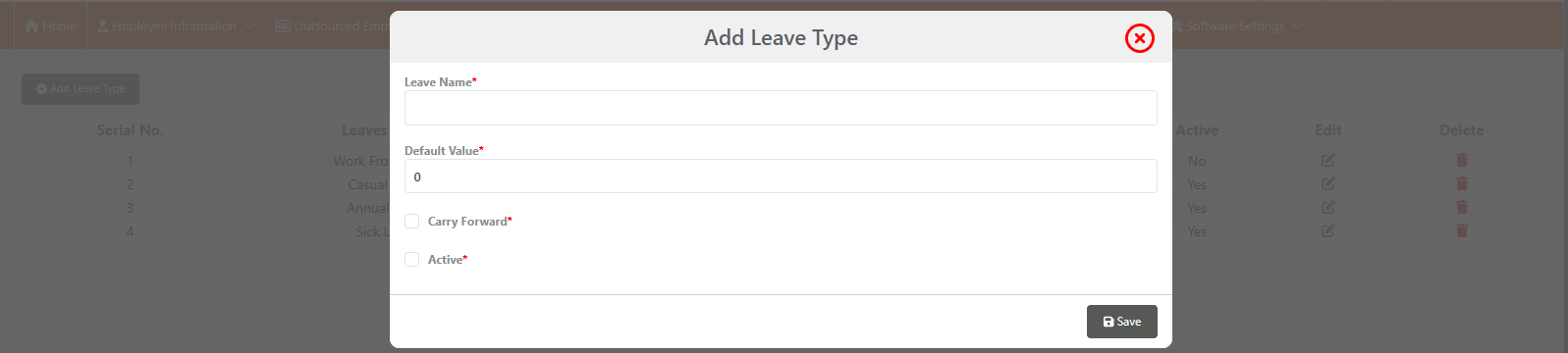
Please ensure that the leave types are updated in accordance with the company’s established policies and guidelines. This should include all categories of leave such as annual leave, sick leave, personal leave, and any other leave types applicable under the company’s leave policy. Ensure that these leave types are clearly defined.
Main Menu > Software Settings > Leave Type Setup

Approvar Layer Name Setup
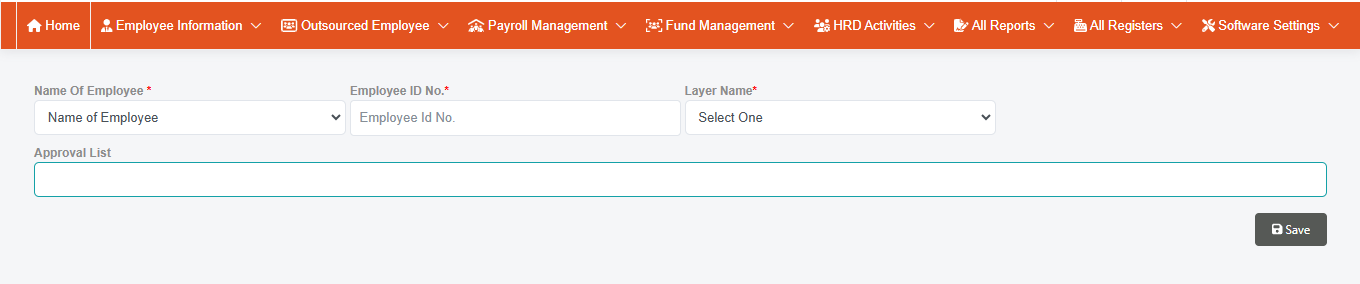
Approver Layer Name Setup is a primary setup for approval.You can set your approver layer name here.
Main Menu > Software Settings > Layer Name Setup


Leave Approvar Setup
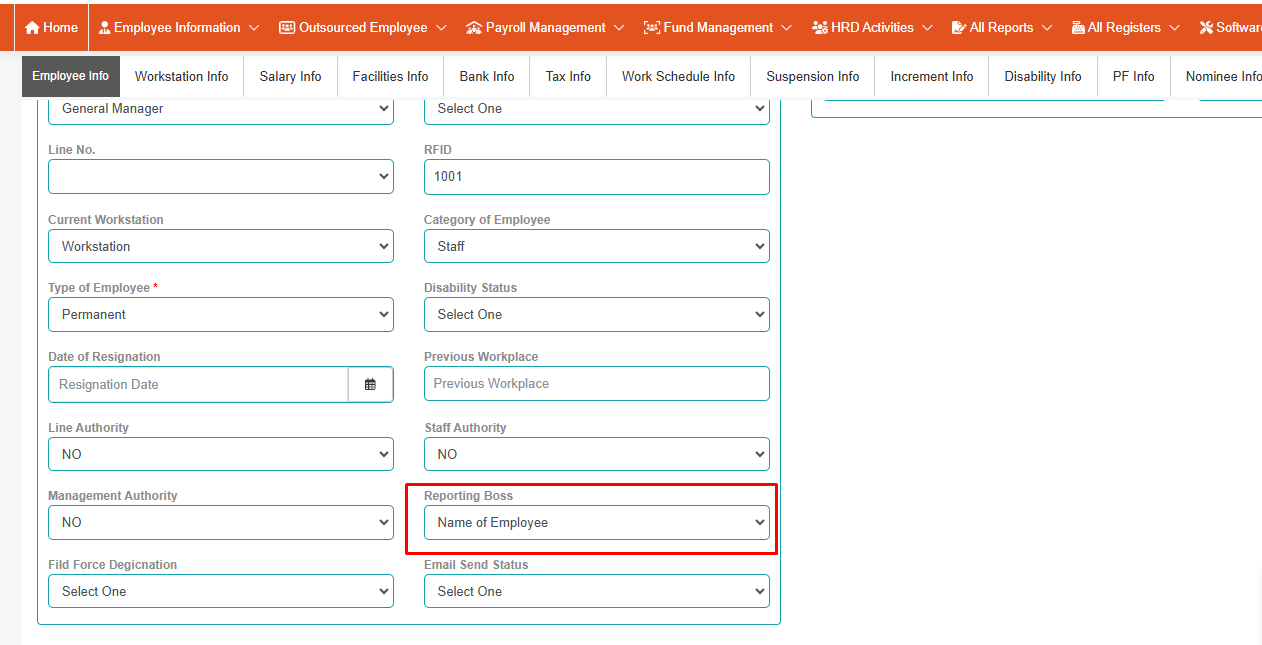
There are three layers to the approval system. In leave. By default, you get the names of layer one, layer two, and layer three. You can change the layer name as per your choice. You can create a team for each approval layer. For each layer, you can add multiple approvers. You can add one by one approver to each layer. and the reporting boss is also a part of the first layer. The reporting boss can attach to the first layer. This approval system works from one layer to another layer. Layer One < Layer Two < Layer Three.
Main Menu > Software Settings > Corporate Leave Setup


reporting Boss Add
Go to user profile. Click on Employee info Tap then go Official Information. In this section you an add reporting boss
Main Menu > Employee Information > Employee Profile
How to Process Leave
Process Leave
Please ensure that the leave types are updated in accordance with the company’s established policies and guidelines. This should include all categories of leave such as annual leave, sick leave, personal leave, and any other leave types applicable under the company’s leave policy. Ensure that these leave types are clearly defined.
Main Menu > Software Settings > Leave Type Setup

How to Apply Leave
Apply Leave
Please ensure that the leave types are updated in accordance with the company’s established policies and guidelines. This should include all categories of leave such as annual leave, sick leave, personal leave, and any other leave types applicable under the company’s leave policy. Ensure that these leave types are clearly defined.
Main Menu > Leave Management > Leave Application

Creating Blog Pages
Lorem the It is a long established fact that a reader will be distracted by the readable content of a page when looking at its layout. The point of using Lorem Ipsum is that it has a more-or-less normal distribution of letters, as opposed to using 'Content here, content here', making it look like readable English. long established fact that a reader will be distracted by the readable content of a page when looking at its layout. The point of using Lorem Ipsum is that it has a more-or-less normal distribution of letters, as opposed to using 'Content here, content here', making it look like readable English.

WordPress Blog Page -
- Step 1 - Lorem the It is a long established fact that a reader ease read more about WordPress here.
- Step 2 - Lorem the It is a long established fact that a reader will be distracted.. Please read more about WordPress here.
- Step 3 - Lorem the It is a long established fact that a read.
Blog Post Sections -
Lorem the It is a long established fact that a reader will be distracted.. Please read more about WordPress here.
- Step 1 - Lorem the It is a long established fact that a reader ease read more about WordPress here.
- Step 2 - Lorem the It is a long established fact that a reader will be distracted.. Please read more about WordPress here.
- Step 3 - Lorem the It is a long established fact that a read.
Create Blog Gallery -
Lorem the It is a long established fact that a reader will be distracted.. Please read more about WordPress here.
- Step 1 - Lorem the It is a long established fact that a reader ease read more about WordPress here.
- Step 2 - Lorem the It is a long established fact that a reader will be distracted.. Please read more about WordPress here.
- Step 3 - Lorem the It is a long established fact that a read.
Leave Notification
Leave Notification
After submitting a leave application, when the approver logs into the system, he gets a notification icon at the top bar. The icon shows a count if any pending application exists. If she/he clicks on the notification icon, it drops him/her into the Approval face.
Main Menu > Leave Management > Leave Application

How to Approval Leave
Employee Application Status
Please ensure that the leave types are updated in accordance with the company’s established policies and guidelines. This should include all categories of leave such as annual leave, sick leave, personal leave, and any other leave types applicable under the company’s leave policy. Ensure that these leave types are clearly defined.
Main Menu > Employee Information > Employee Application Status

Leave Approval Face
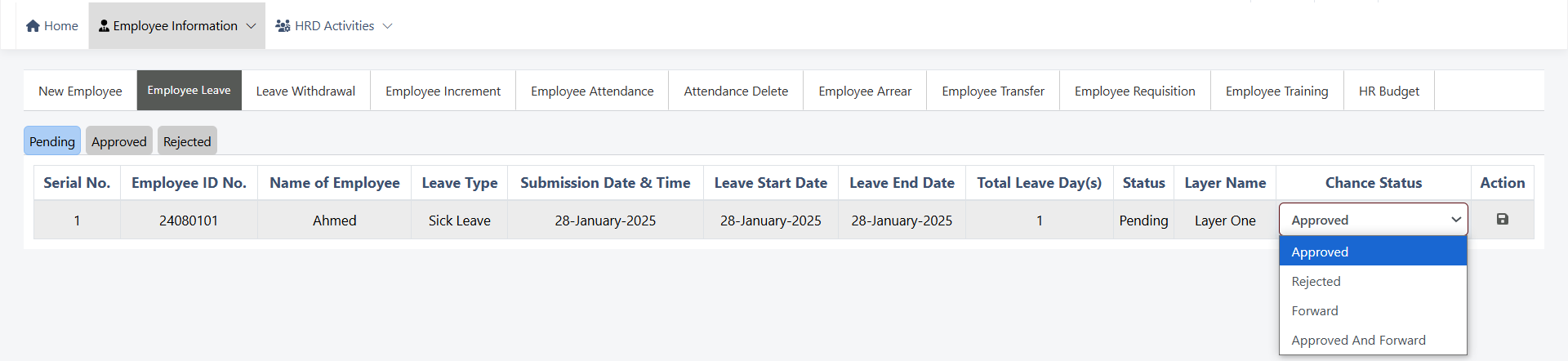
In the Leave Approval face, you will get three tabs Pending, Approved, and Rejected. All pending leaves are shown to you in the list. Under the pending tab, you will get 4 types of action (Approved, Rejected, Forward, Approved and forward) regarding the leave application
Main Menu > Employee Information > Employee Application Status
Rejected
The approver can reject the application.
If the first Approver Rejects the application. At this time, it's count rejected. Every layer, one of them can do that.
If rejected from any one layer, the next layer will not show again. will be considered rejected.
Forword
The approver can forward the application. Every layer, one of them can do that.
If someone Forward from one layer. It will be pending for the next layer.
Example: From Layer One, Someone Forward (Consider for the next layer) an application. It's forwarded to the next layer
Approved
The approver can Approve the application.
Every layer, one of them can do that.
If someone approved from one layer. It does not go to the next layer. will be considered as Approved.
Example: From Layer One, Someone Approved an application. It's Approved.This application goes the next layer (Layer Two).
Approved & Forword
Considered as approved from your end, but next-layer approval is needed. In this case, you can approve from your end and forward for the next layer. then the next layer accesses it.
Import & Export Options
Lorem the It is a long established fact that a reader will be distracted by the readable content of a page when looking at its layout. The point of using Lorem Ipsum is that it has a more-or-less normal distribution of letters, as opposed to using 'Content here, content here', making it look like readable English. long established fact that a reader will English.
Support Desk
Please remember you have purchased a very affordable theme and you have not paid for a full-time web design agency. Occasionally we will help with small tweaks, but these requests will be put on a lower priority due to their nature. Support is also 100% optional and we provide it for your connivence, so please be patient, polite and respectful.
Please visit our profile page or ask question @yourusername
Support for my items includes:- * Responding to questions or problems regarding the item and its features
- * Fixing bugs and reported issues
- * Providing updates to ensure compatibility with new software versions
- * Customization and installation services
- * Support for third party software and plug-ins
- * Make sure your question is a valid Theme Issue and not a customization request.
- * Make sure you have read through the documentation and any related video guides before asking support on how to accomplish a task.
- * Make sure to double check the theme FAQs.
- * Try disabling any active plugins to make sure there isn't a conflict with a plugin. And if there is this way you can let us know.
- * If you have customized your theme and now have an issue, back-track to make sure you didn't make a mistake. If you have made changes and can't find the issue, please provide us with your changelog.
- * Almost 80% of the time we find that the solution to people's issues can be solved with a simple "Google Search". You might want to try that before seeking support. You might be able to fix the issue yourself much quicker than we can respond to your request.
- * Make sure to state the name of the theme you are having issues with when requesting support via ThemeForest.
Files & Sources
These are the primary CSS files used for general front-end styling. Use these to customize your theme even further. All included JavaScript codes under yourthemename/css/
- 1. style.css - Primary stylesheet
- 2. bootstrap.css - Bootstrap stylesheet
- 3. owl-carousel.css - OWL Carousel
- 4. fontawesome.css - FontAwesome Font Icons stylesheet
- 5. custom.css - Pathos Color Schemes stylesheet
- 6. prettyPhoto.css - Lightbox effect css file
- 7. flexslider.css - Flexslider css file
- 8. et-line.css - Elegant icons css file
- 9. carousel.css - OWL Carousel css file
- 10. animate.css - CSS3 animations css file
These are the various attribution inks to the Javascript files included or modified to work with in this theme. All included JavaScript codes under yourthemename/js/
- 1. bootstrap.js - Bootstrap JavaScript
- 2. custom.js - All JavaScript Plugins
- 3. retina.js - Retina JavaScript
- 4. jquery.js - Base JavaScript
- 5. prettyPhoto.js - Lightbox JavaScript
- 6. owl-carousel.js - Lightbox JavaScript
- 7. revslider.js - Revolution Slider JavaScript
- 8. flexslider.js - Flexslider JavaScript
- 9. awesome-grid.nin.js - Awesome grid portfolio JavaScript
- 10. circle.js - Coming soon page JavaScript
- 11. contact.js - Contact form validate JavaScript
- 12. isotope.js - Masonry Portfolio JavaScript
- 13. progress.js - Progress bar JavaScript
- 14. rotate.js - Text rotate effect JavaScript
- 15. wow.js - CSS3 animation JavaScript
Version History (Changelog)
You can find the version history (changelog.txt) file on yourthemename-full.zip folder or you can check changelog on theme sale page.
Once again, thank you so much for purchasing this theme. As I said at the beginning, I'd be glad to help you if you have any questions relating to this theme. No guarantees, but I'll do my best to assist. If you have a more general question relating to the themes on ThemeForest, you might consider visiting the forums and asking your question in the "Item Discussion" section.
Changelog
-----------------------------------------------------------------------------------------
Version 3.8.4 - May 7th, 2015
-----------------------------------------------------------------------------------------
- new revolution slider plugin version
- fixed security issue with xss vulnerability
- improved demo importer for certain server environments
- updated WooCommerce template files for the outdated message in system status
- added suhosin check in system status
- added information that explains ZipArchive is required on your server for importing demos
- portfolio Grid template improvement
- added more information to demo popup message for individual demo requirements
- RTL style improvements
- breadcrumb function improved for various areas
-----------------------------------------------------------------------------------------
Version 3.8.3 - May 7th, 2015
-----------------------------------------------------------------------------------------
- fixed responsive / retina issue for larger logos
- fusion slider now uses responsive headings all the time
- dropped custom Avada styles for select boxes in IE since it is not supported
- fixed compatibility issue with Category Order and Taxonomy Terms Order plugin
- fixed issue of full width background being affected by padding options
- tested and fixed hellobar issue
- typography settings now apply to single post pages
- improved smooth scroll in certain situations
- youtube & vimeo videos will show at normal size in light box as long as video embed link is not used
- fixed issue of “fixed†featured image mode not working for carousels / recent work
- fixed issue of header tagline font not working with font options
-----------------------------------------------------------------------------------------
Version 3.8.2 - May 7th, 2015
-----------------------------------------------------------------------------------------
- fixed formatting issues with Turkish language files
- letter spacing menu option improvement
- improved fusion slider max content width setting
- removed the “disable first featured image on products†setting since it does not apply
- improved portfolio featured image loading
- removed encoding from tracking code, space before head, space before body, and custom CSS to stop it from parsing code within TO and removing special characters e.g. +
- woo login box now shows login fields for logged out users
- woo cart / my account links now show on mobile
- fixed button styling issue with gravity forms
Copyright and license
Code released under the Un License License.
For more information about copyright and license check choosealicense.com.